Voice Mode
Privacy-First Voice Mode
Real-time voice chat with local LLM models, hands-free, running entirely on your own computer. No corporate servers, no data collection, no subscription.
The signal path
Your Voice Never Crosses the Network
Speech-to-text and text-to-speech both run on the phone itself. What travels over your Wi-Fi is plain text — a prompt out, tokens back. The audio starts and ends in your hand.
Unplug the router from the internet and the loop keeps running. There is no third party in it to lose.
You
Speaking out loud
Hands free, screen off, anywhere in range of your own Wi-Fi.
Your voice, captured by the phone mic
The reply, spoken back to you
Audio never leaves the phone
Your phone
LMSA on Android
On-device transcription and speech synthesis. Chats stored in an encrypted local database.
Text prompt
Generated tokens
LAN only · :1234 / :11434
Your computer
LM Studio or Ollama
Your hardware, your model files, your logs. Nothing is uploaded to run a turn.
No route to the internet
Where it runs
Why Voice Chat with Local LLMs is a Privacy Revolution
- On your phone
On-Device Speech Processing
LMSA's Voice Mode handles speech-to-text (transcription) and text-to-speech (synthesis) directly on your Android phone using local device engines. Your actual voice recordings never leave your device.
- On your computer
Self-Hosted Computing
The model runs on your own hardware via LM Studio or Ollama. No cloud GPUs, no servers reading your dialogue, no corporate storage of your prompts.
- On your phone
Encrypted On-Device Database
Your chat logs and conversation records sit locally on your phone in an encrypted SQLite database. You control your data — delete it and it is gone.
- On your Wi-Fi
LAN Network Security
Traffic between your phone and your desktop stays inside your own router. Nothing is sent over the open internet during a local voice session.
Outside your network: nothing — unless you turn on OpenRouter or web search. Read the exceptions.
Media Integration
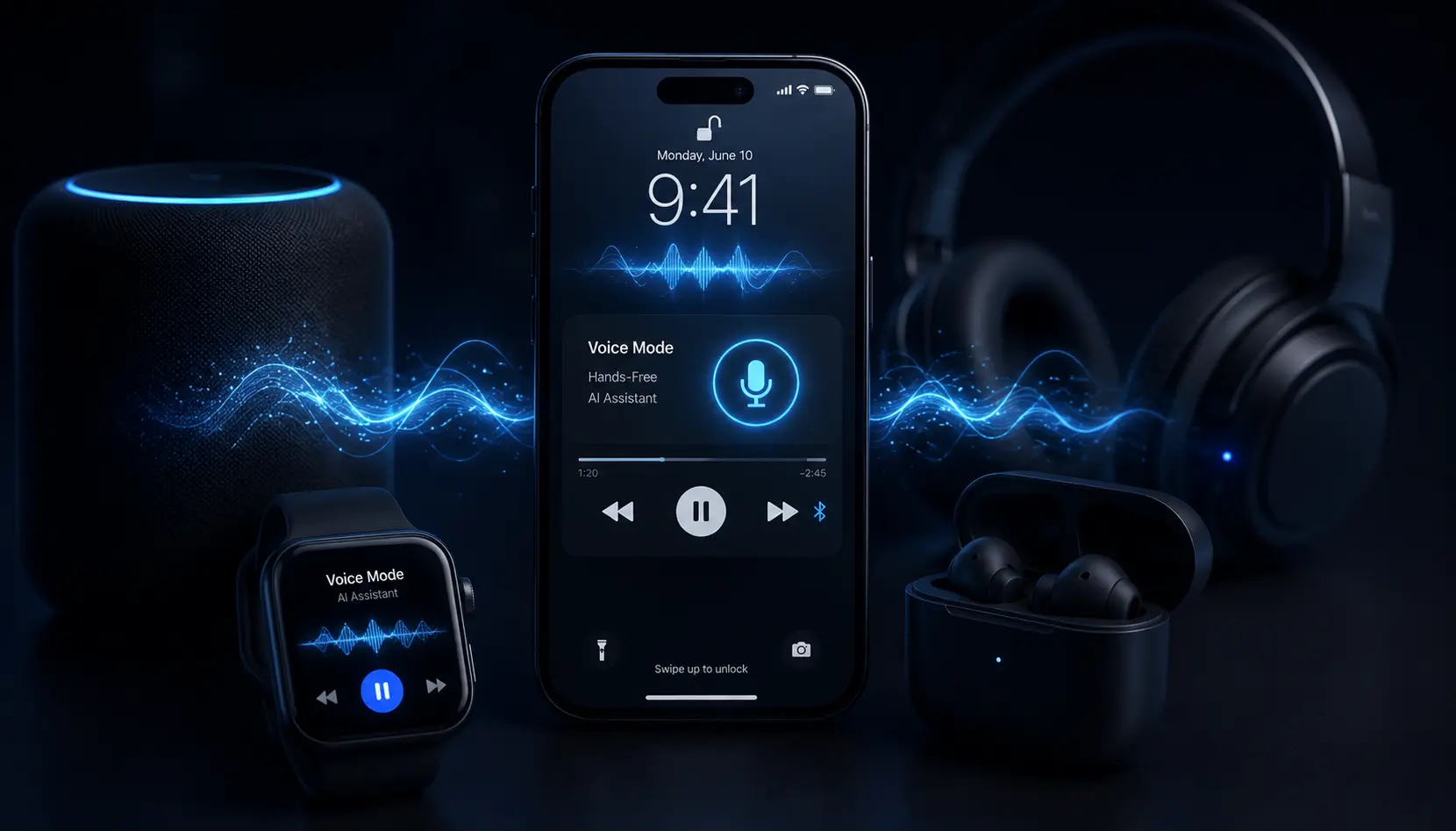
Spoken replies run as an Android media session. Pause, resume, or stop Voice Mode from your lock screen, the notification shade, or the buttons on your earbuds, car stereo, or watch — no unlocking, no switching apps.
Setup
Step-by-Step Setup Guide
Four steps, about five minutes, assuming LM Studio or Ollama is already installed on your computer.
Expose Your LLM Server to Your Home Network
By default, local LLM servers only answer requests from the same machine (localhost). To let LMSA reach your server from your phone, bind it to your local network instead.
- Launch LM Studio and load any GGUF model.
- Open the Developer tab (the </> icon in the sidebar).
- Turn “Serve on Local Network” on. This binds the server to your computer’s IP address instead of localhost.
- Start the server. It listens on port 1234 by default.
Note the local IP address shown on the LM Studio server page (for example 192.168.1.15) — you may need it in step 2.Install and Connect LMSA on Android
LMSA is the client. It can find running model servers on your home subnet on its own, or you can point it at one directly.
- Install LMSA from the Google Play Store and open it.
- In Connection Settings, turn on Wi-Fi auto-discovery, or enter your computer’s local IP address and port (1234 for LM Studio, 11434 for Ollama).
- Pick a loaded model in the connection manager.
- Send a text message first to confirm the link works.
Activate Voice Mode
Two ways in:
The mic in the chat box
Tap the microphone in the text input of any chat to drop straight into Voice Mode.
The sidebar menu
Open Options in the navigation drawer and choose “Voice Mode”.
Have Your First Hands-Free Conversation
No Send button, no Play button. Speak naturally: LMSA transcribes what you said, sends it to the model on your computer, and reads the reply back out loud. The session stays open for continuous back-and-forth.
[TIP]
Continuous chat: listening restarts automatically once a reply finishes speaking, so you can keep the conversation going while your hands are busy elsewhere.
Optimizing Your Voice Experience
Fast Quantized Models
Big models give richer answers but take seconds to start talking. For conversation that feels live, load something lightweight — a 7B or 8B at 4-bit quantization keeps latency down.
Concise System Prompts
Listening to a wall of text is tedious. Add a system prompt in LMSA such as "Keep responses brief, conversational, and direct" to shape output for the ear rather than the eye.
Trustworthy Wi-Fi
Local connections are fast but unencrypted by default. Keep this setup on private networks you control, and avoid it on open public hotspots.
Security & Architecture Disclosures
Two optional features do send data off your network. Both are off until you turn them on, and neither one changes how speech is handled.
Cloud Integrations: OpenRouter
Optional · off by defaultLMSA is built for local servers, but you can connect it to OpenRouter to reach cloud-hosted models. If you do, your text prompts travel over HTTPS to OpenRouter. Voice Mode transcription and speech synthesis still run entirely on the phone.
Real-time Information: Brave Search
Optional · off by defaultWith web search enabled, queries are routed to Brave Search, which does not build user profiles or log queries. Those search terms do leave your network to fetch live results.
Questions
Frequently Asked Questions
Start Talking to Your Private LLM
Ditch the cloud-connected smart speaker. LMSA needs no account, and Voice Mode with LMSA Premium turns the machine already sitting in your house into a voice assistant that answers only to you.

Free · No account · Android