
You've probably tinkered with a local AI chatbot on your phone at some point. Maybe you downloaded an app that runs a small language model directly on your device. It worked - sort of. But did you notice how fast your battery percentage started dropping? How the back of your phone turned into a tiny space heater? How that "quick chat" turned into a 15% battery drain in what felt like five minutes?
You're not imagining things.
Running large language models (LLMs) on mobile devices is brutally expensive in terms of energy consumption. The computational demands of modern AI are simply too much for a smartphone battery to handle gracefully. Intensive memory footprint, long inference latency, and high energy consumption severely bottleneck on-device inference of LLMs in real-world scenarios. If you're running models directly on your phone, you're fighting an uphill battle against physics.
But there's a much better way - one that keeps your conversations private, your responses fast, and your phone cool. It's called computation offloading, and the tool that makes it dead simple is called LMSA.
The Hidden Cost of AI on Your Phone
Why On-Device AI Destroys Your Battery
To understand why local AI drains your battery so fast, you need to grasp one fundamental bottleneck - memory bandwidth.
When an AI model generates a response - a process called auto regressive decoding - it has to stream the entire model's weights from memory to the processor for every single token it produces. Every time the AI outputs a single word, your phone's processor has to read the entire model - all its billions of parameters - from RAM. For a 7-billion parameter model, that's gigabytes of data moving back and forth, over and over again.
Memory bandwidth is the real bottleneck here. And this bottleneck doesn't just slow things down - it burns through battery life at an alarming rate. The constant data shuffling keeps your processor at high utilization, generates heat, and forces your battery to work overtime.
The Brutal Numbers
Researchers have put hard numbers on this problem. In comprehensive benchmarks of LLM inference on mobile platforms, battery drain rate is one of the primary metrics being tested. Studies have shown that intensive memory footprint and high energy consumption severely bottleneck on-device inference of LLMs in real-world scenarios.
Even with specialized mobile NPUs (Neural Processing Units), the story isn't always rosy. Scheduling overhead and cross-backend fallback can actually lead to higher energy consumption - up to 51% in some cases. The hardware inside your phone simply isn't designed for sustained AI workloads.
The bottom line is simple - running AI models on your phone is one of the most power-hungry things you can ask it to do. And if you're someone who interacts with AI regularly - whether for work, coding, writing, or just curiosity - that battery drain adds up fast.
The Solution - Offload Computation to a Home Server
How Computation Offloading Works
Computation offloading is exactly what it sounds like. Instead of running the heavy AI computation on your phone, you send the request to a more powerful machine - your home server, a desktop PC, or even a laptop - that plugs into the wall. That machine does all the heavy lifting and sends the result back to your phone.
The energy savings are substantial. Think about it this way - your phone's battery holds about 15-20 watt-hours of energy total. A desktop PC might draw 100-200 watts from the wall, but it's running continuously anyway. When you offload an AI task, your phone only needs to:
- Send a short text prompt over WiFi (minimal energy)
- Receive the generated response (minimal energy)
- Display it on screen
The actual computation - the part that would have drained your battery - happens elsewhere, on a device that doesn't care about battery life.
Thermal Benefits
There's another benefit that's easy to overlook - heat.
When your phone runs AI locally, it gets hot. Really hot. And heat is the enemy of battery health - lithium-ion batteries degrade faster when exposed to high temperatures. By offloading computation, your phone stays cool, which extends the overall lifespan of your battery.
Introducing LMSA - The Best Way to Run Local AI on Mobile
What Actually Is LMSA?
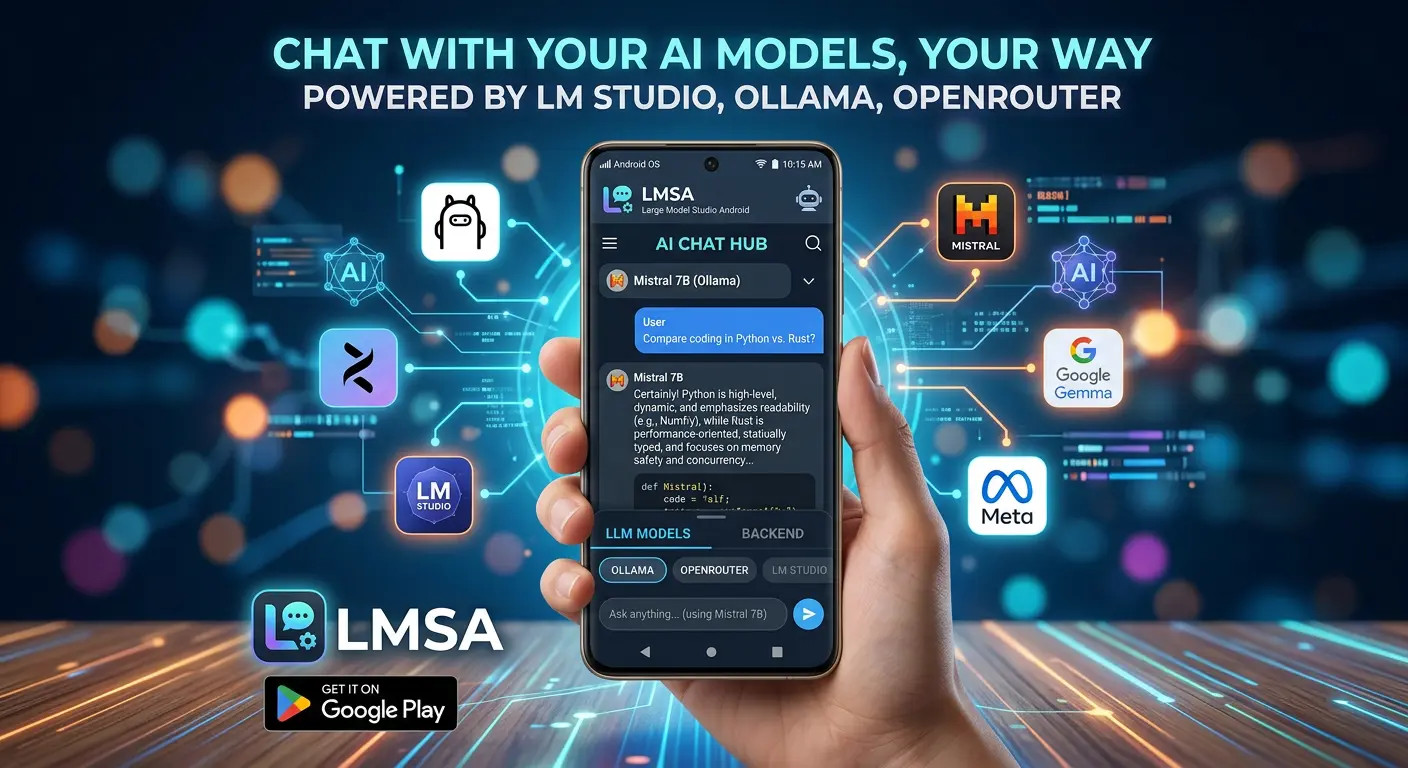
LMSA (short for Local Model Smart Assistant, sometimes called LM Studio Assistant) is a free Android app that lets you chat with AI models in two ways - by connecting to AI models running on your own computer through tools like LM Studio or Ollama, or by connecting directly to cloud AI models through OpenRouter.
What makes LMSA stand out is what it doesn't do. It doesn't run models locally on your mobile device. It's a remote interface - a lightweight, lightning-fast bridge to your models. Your phone sends a prompt, your computer does the thinking, and your phone displays the result.
Think of it like a remote control for your TV. The remote (your phone) sends a signal, and the TV (your PC) does all the heavy work. The remote's battery lasts for years.
Why LMSA Is the Most Power-Efficient Mobile AI Option
Here's the key insight that makes LMSA the clear winner for battery-conscious users:
LMSA does not run models on your Android device. It connects to models running on your computer.
This is the entire secret. When you use LMSA, your phone isn't doing any AI computation whatsoever. It's just a client - a beautiful, intuitive interface that sends your prompts to your home server and displays the responses. The battery drain is minimal because the heavy lifting happens elsewhere.
Let's break down exactly why this saves so much battery:
When you run AI on your phone:
- The CPU, GPU, or NPU has to process billions of calculations
- Memory bandwidth is maxed out moving model weights
- The device heats up, triggering thermal throttling
- The battery drains rapidly - sometimes in as little as 30-60 minutes of continuous use
When you offload to a server using LMSA:
- Your phone sends a short text prompt (maybe 1-2KB of data)
- The server does all the computation using wall power
- Your phone receives the response (another 1-2KB of data)
- Your phone's battery usage is limited to WiFi transmission and screen display
The difference is dramatic. Even with the overhead of WiFi transmission, offloading saves enormous amounts of energy compared to local execution. Your phone essentially becomes a thin client - it shows you results without doing the hard work.
Privacy That Doesn't Cost Battery
One of the common arguments for on-device AI is privacy - your data never leaves your phone. But here's the thing - a local server setup with LMSA gives you the same privacy benefits.
When you run your own AI server at home and connect through LMSA, your data travels over your local WiFi network and never touches the public internet. LMSA itself never sees, stores, or has the ability to leak your conversations - because they never pass through LMSA's servers in the first place.
Here's what that means for you:
- Privacy First: LMSA never tracks your messages. All messages are stored locally on your device.
- Local-First: All conversations stay on your device and local network.
- Encrypted Chat Storage: Chats are encrypted on-device with AES-256.
- Direct Cloud Access: OpenRouter requests go straight to the provider - no middleman servers.
- Zero Data Retention: For qualifying OpenRouter models, your chats are never logged or used for training.
- Biometric Lock: Protect your chats with fingerprint or face unlock.
Key Features That Make LMSA the Complete Package
LMSA isn't just a bare-bones client. It's a feature-rich environment designed specifically for interacting with the world's most advanced LLMs on mobile.
- Model Switching: Instantly swap between loaded models (GGUF, Cloud API, etc.) directly from your phone.
- AI Voice Chat: Text-to-speech fully processed on-device for privacy.
- Real-Time Web Search: Fetch live data, current news, and up-to-date information before generating responses.
- File Processing: Attach TXT, PDF, JSON, CSV, HTML, Markdown, Python, JavaScript, and more for context-aware analysis - all processed locally.
- Full Parameter Control: Adjust temperature, top-p, repetition penalty, and custom system prompts on the fly.
- Smart Replies: Context-aware reply suggestions generated instantly from AI responses.
- Custom Personas: Pre-built AI personalities for specialized tasks - coding, writing, tutoring, and more.
- Auto Discovery: Scan your local network to automatically locate your local server configuration.
- Ad-Free Experience: Enjoy a clean interface with a simple one-time purchase to remove ads - no subscriptions ever.
Step-by-Step - How to Set Up Your Battery-Saving Local AI
Now let's get practical. Here's exactly how to set up a local AI server that your Android phone can connect to using LMSA.
What You'll Need
- A computer (Windows, Mac, or Linux) with at least 8GB of RAM (16GB recommended for larger models)
- LM Studio or Ollama - free software that runs local AI models
- Your Android phone connected to the same WiFi network as your computer
- The LMSA app installed on your phone from the Google Play Store
Option 1 - Using LM Studio (The Visual Approach)
LM Studio is the easiest way to get started - it has a graphical interface that makes everything simple.
Step 1 - Install LM Studio
- Go to lmstudio.ai and download the version for your operating system.
- Install it like any other program.
Step 2 - Download a Model
- Open LM Studio. You'll see a search bar on the home screen.
- Search for a model. For beginners on modest hardware, I recommend starting with Llama 3.1 8B - it's smart and runs smoothly on most laptops. If your computer is older or has less RAM, try Phi-3 Mini or Gemma 2B - they're smaller but still capable.
- Click the download button next to the model you want.
Step 3 - Load the Model
- Switch to the Chat tab in LM Studio.
- Select your downloaded model from the dropdown at the top.
- Wait until you see "Model loaded" - this means the model is ready to use.
Step 4 - Start the Server (This Is the Critical Step)
- Click the Developer tab in the left sidebar (usually represented by a
</>icon). - With your model loaded, toggle the server to "Start" .
- This is the single most important setting for mobile users: check the box that says "Serve on Local Network" . This makes your LM Studio instance accessible to other devices on your WiFi.
Step 5 - Find Your Server Address
- LM Studio's server runs on
http://127.0.0.1:1234by default. - When you enable "Serve on Local Network," other devices can connect using your computer's local IP address and port 1234.
- To find your computer's IP address:
- Windows: Open Command Prompt and type
ipconfig- look for "IPv4 Address" - Mac/Linux: Open Terminal and type
ifconfigorip addr
- Windows: Open Command Prompt and type
Option 2 - Using Ollama (The Terminal Approach)
If you're comfortable with the command line, Ollama is a powerful alternative.
Step 1 - Install Ollama
- Grab the installer from ollama.com and install it.
Step 2 - Pull a Model
- Open your terminal.
- Run -
ollama pull llama3.1:8b(orphi3,mistral,gemma2:2bfor smaller models).
Step 3 - Start the Server
- By default, Ollama runs a server on
http://localhost:11434. - To make it accessible on your local network, you may need to configure it to listen on
0.0.0.0.
Connecting Your Android Phone with LMSA
Now that your server is running, it's time to connect your phone.
Step 1 - Install LMSA
- Go to the Google Play Store and search for "LMSA for LM Studio & Ollama".
- Install the app on your Android device.
Step 2 - Set Up the Connection
- Open LMSA on your phone.
- For local setups, ensure your phone is on the same Wi-Fi network as your computer.
- In LMSA Settings, enter your computer's server address (IP and port).
- Alternatively, use the Auto Discovery feature to scan your local network and automatically locate your server.
Step 3 - Start Chatting
- Once connected, you can start chatting immediately.
- Swap models, attach files, adjust parameters, and chat freely with a pristine, native mobile experience.
The entire setup takes about 10-15 minutes. From then on, using AI on your phone is as simple as opening the app and typing your question.
Advanced Tips for Maximum Battery Savings
Once you have the basics working, here are some ways to squeeze even more battery life out of your setup.
Choose the Right Model Size
The beauty of a server-based setup is that you're not limited by your phone's hardware. You can run larger, more capable models. But don't go overboard - choose a model that fits your computer's RAM.
- 8GB RAM: Stick with 7B-8B parameter models like Llama 3.1 8B
- 16GB RAM: You can run 13B-14B models comfortably
- 32GB+ RAM: The sky's the limit - 70B models are possible
Use Quantized Models
Quantization reduces model size by using fewer bits per parameter. A 4-bit quantized model runs faster and uses less memory than the full-precision version, with minimal quality loss. When downloading models, look for "Q4" or "INT4" versions - they're the sweet spot for home servers.
Network Considerations
For the best experience:
- Use a 5GHz WiFi network for lower latency
- Keep your phone and server on the same network segment
- Consider using Ethernet for your server if possible - it reduces latency and improves reliability
Enable Dark Mode
AMOLED screens use significantly less power on dark backgrounds. Enable dark mode in LMSA settings to reduce screen power consumption during extended chat sessions.
Minimize Screen-On Time
Every second your screen is on consumes battery. Since LMSA's responses come from your server, they're typically fast. Take advantage of this by keeping interactions brief and to the point - you'll save battery and get more done.
The Bigger Picture - Why This Matters
Device Longevity
Your phone's battery is a consumable component - it has a limited number of charge cycles. Every time you drain it from 100% to 0%, you consume one cycle. By offloading computation and preserving battery life, you're not just getting through the day - you're extending the usable life of your device.
Environmental Impact
There's an environmental angle too. When you reduce battery drain, you charge your phone less often. Less charging means less electricity consumption over the device's lifetime. And when devices last longer because their batteries aren't being abused by heavy AI workloads, fewer phones end up in landfills.
The Future of Mobile AI
The trend is clear - AI is coming to mobile devices, but the question of where the computation happens is still open. On-device AI has its place - especially for tasks that require extreme low latency or work offline. But for most everyday AI interactions, a local server setup offers the best combination of performance, privacy, and battery life.
LMSA represents a pragmatic, privacy-first approach to mobile AI. It doesn't try to cram massive models into tiny phones. Instead, it embraces the reality that your phone is a client, and your computer is the server. It's a division of labor that makes sense for everyone.
Take Back Your Battery
Running AI on your phone doesn't have to mean sacrificing your battery life. By setting up a local AI server with LM Studio or Ollama and connecting your Android phone using LMSA, you get:
- Privacy: Your data stays on your local network - LMSA never sees your conversations
- Performance: Bigger, smarter models running on more powerful hardware
- Battery life: Your phone stays cool and lasts all day because it's not doing any AI computation
- Cost: No cloud subscriptions, no per-query fees
- Control: You choose the models, you control the data
The setup process takes maybe 15 minutes, and the benefits last as long as you use AI on your phone. Once you experience the difference - instant responses, no battery anxiety, and a phone that doesn't double as a hand warmer - you'll never go back to running AI locally again.
LMSA is the most power-efficient mobile AI option available because it simply doesn't run models on your phone. It connects to models running on your computer, turning your Android device into a lightweight, battery-friendly client for the world's most advanced language models.
Your battery will thank you.