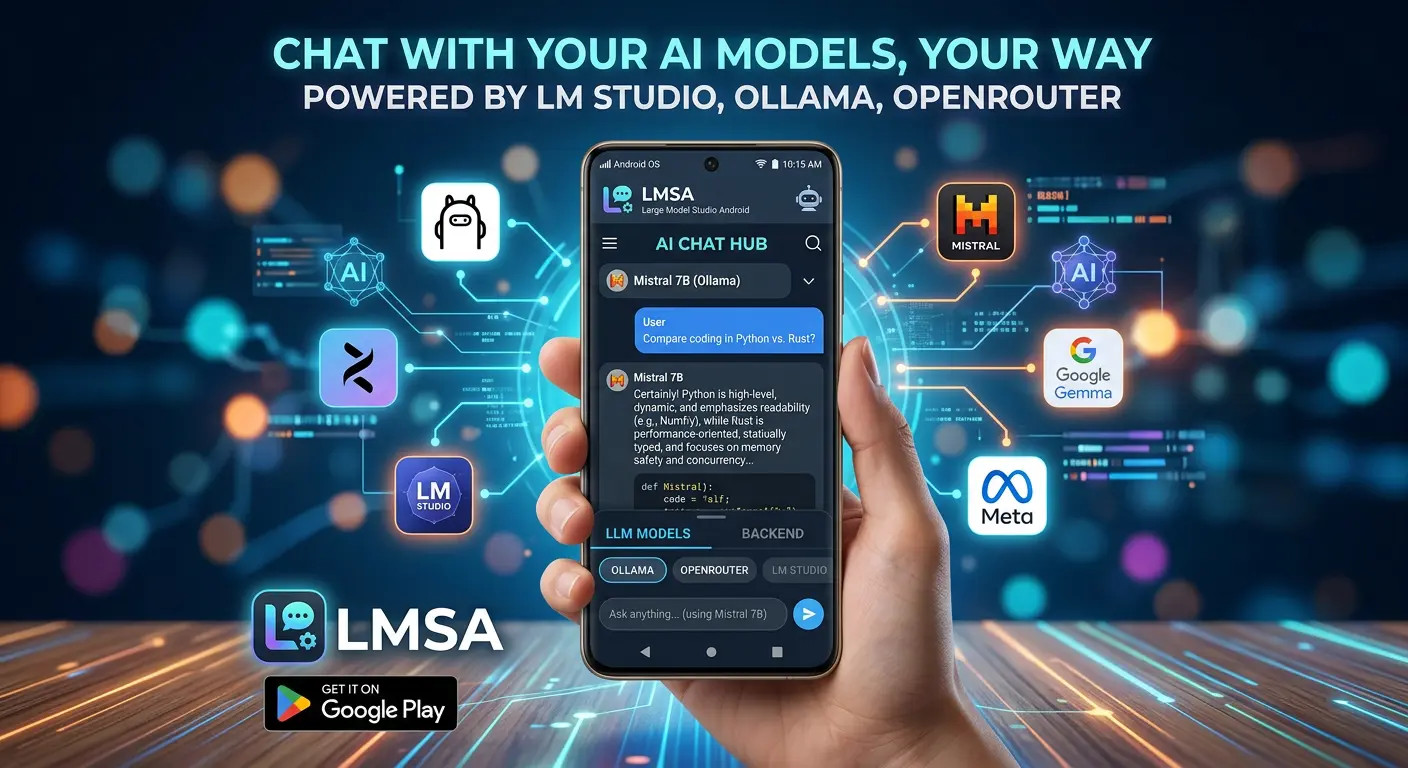

Running Ollama on your computer is one of the easiest ways to get a private, local AI model up and running. But Ollama by itself is a background service — it doesn't come with a mobile app, and interacting with it usually means typing commands into a terminal or hitting its API with curl. If you'd rather chat with your Ollama models from your phone while lying on the couch, there's a simple solution: LMSA, a free Android app built specifically to act as a mobile front-end for local AI servers like Ollama.
LMSA, available at lmsa.app, connects to Ollama over your local Wi-Fi network and gives you a clean, mobile-friendly chat interface — no cloud account, no API key, no third-party server sitting between you and your model. In this guide, we'll walk through exactly how to connect Ollama to an Android device using LMSA, plus how to fix the handful of connection issues that trip most people up.
Why LMSA for Ollama on Android?
Ollama's strength is its simplicity on the desktop side, but that simplicity doesn't extend to mobile by default. LMSA fills that gap with a purpose-built interface that talks directly to Ollama's API.
Beyond basic chat, LMSA includes features like adjustable system prompts, temperature controls, saved chat history, dark mode, and a "thinking mode" that lets you see the full reasoning chain for models like DeepSeek-R1. It also supports LM Studio and OpenRouter, so if you ever run multiple local servers or want to blend in a cloud model, you can switch between them without changing apps.
Just as important: LMSA is privacy-first. It doesn't track your usage, and since it connects straight to your own Ollama instance, your prompts and responses never leave your local network.
What You'll Need
- A computer running Ollama with at least one model already pulled (e.g.
ollama pull llama3). - An Android device running Android 6.0 or higher.
- Both devices on the same Wi-Fi network.
- The LMSA app, downloaded from the Google Play Store or lmsa.app.
Step 1: Configure Ollama to Accept Network Connections
By default, Ollama only listens on localhost, which means it will refuse connections from any other device on your network — including your phone. This step is the one people skip most often, and it's the single biggest reason LMSA fails to connect.
On Windows and Mac, the easiest path is the built-in toggle in the Ollama desktop app:
- Click the Ollama icon in your system tray (Windows) or menu bar (Mac).
- Open Settings.
- Enable "Expose Ollama to the network." This single toggle handles binding Ollama to all network interfaces for you — no manual environment variables required.
- Fully quit Ollama and relaunch it so the change takes effect.
If you're on an older version of Ollama without this toggle, or you just prefer doing it manually, you can set the same behavior yourself with environment variables:
On Windows (manual method):
- Search for "Environment Variables" in the Start menu and open Edit the system environment variables.
- Add a new system variable named
OLLAMA_HOSTwith the value0.0.0.0. - Restart Ollama so it picks up the new variable.
On Mac (manual method):
- Quit Ollama fully (from the menu bar) and relaunch it.
Open Terminal and run:
launchctl setenv OLLAMA_HOST "0.0.0.0"
On Linux, there's no desktop UI toggle — Ollama typically runs as a systemd service, which doesn't read environment variables set in your shell. You'll need to edit the service directly:
- Run
sudo systemctl edit ollama.service. - Save, then run
sudo systemctl daemon-reloadandsudo systemctl restart ollama.
Add the following under the [Service] section:
Environment="OLLAMA_HOST=0.0.0.0"
Since LMSA connects as a native Android app rather than a browser, OLLAMA_HOST alone is usually enough to get it talking to your server. OLLAMA_ORIGINS mainly matters for browser-based tools enforcing CORS — but if you ever run into a stubborn connection issue, setting OLLAMA_ORIGINS=* alongside OLLAMA_HOST (using the same method for your OS above) is a safe way to rule it out.
Step 2: Find Your Computer's Local IP Address
With Ollama now listening on your network, you need your computer's local IP address so LMSA knows where to send requests.
- Windows: Open Command Prompt, type
ipconfig, and look for "IPv4 Address." - Mac: Go to System Settings > Wi-Fi > Details, or run
ifconfigin Terminal and check theinetline under your active network. - Linux: Run
ip addr showand look for theinetaddress on your active interface.
Ollama's default port is 11434 — keep that handy for the next step.
Step 3: Install and Configure LMSA on Android
- Download LMSA from the Google Play Store or lmsa.app.
- Open the app and go to Settings.
- Select Ollama as your connection type (LMSA supports LM Studio, Ollama, and OpenRouter, so make sure the right one is selected).
- Enter your computer's IP address and port
11434. - Save the settings.
If your setup is correct, LMSA will pull the list of models you've already downloaded in Ollama, and you can pick one to start chatting.
Step 4: Test It Out
Send a quick message like "Hey, can you hear me?" If you get a response, your phone is now fully talking to your Ollama server. From here you can switch models, adjust the system prompt, tune temperature, and browse your saved chat history — all without touching your computer again.
Troubleshooting Common Issues
LMSA won't connect at all
- Confirm both devices are genuinely on the same network. Guest Wi-Fi networks often isolate devices from each other by design, which silently breaks this kind of local connection.
- Double check you fully quit and relaunched Ollama after enabling "Expose Ollama to the network" (or setting
OLLAMA_HOST) — the change doesn't take effect until Ollama restarts. - Re-verify the IP address; home routers frequently reassign local IPs after a reboot.
Models list is empty or the connection times out
- This usually means Ollama is still bound to
localhostonly. Recheck that the network toggle is enabled (orOLLAMA_HOSTis set correctly) from Step 1. - Make sure your computer's firewall allows inbound connections on port 11434.
- If it's still not working, try also setting
OLLAMA_ORIGINS=*as described at the end of Step 1 — some setups need both.
Responses are slow
- Generation speed is determined by your computer's CPU/GPU and the size of the model you loaded — not by your phone. A large model on modest hardware will feel slow from any device.
Auto-discovery finds nothing
- Some versions of LMSA can scan your network for a running Ollama instance automatically instead of manual IP entry. If it comes up empty, fall back to entering the IP address manually — router configurations and network isolation settings sometimes block broadcast-based discovery even when a direct connection would work fine.
Bonus: Access Your Ollama Server Away From Home
The setup above only works while your phone and computer share a network. If you want to reach your Ollama server while you're out, pair it with a mesh VPN like Tailscale. Tailscale creates a private, encrypted network between your devices that behaves like a shared Wi-Fi connection no matter where you physically are, without exposing your Ollama server to the public internet. Once it's running, just swap your local IP address in LMSA for the Tailscale IP, and you'll be able to chat with your home models from anywhere.
Ready to connect?
Connecting Ollama to Android doesn't require a complicated bridge or a subscription service — it just requires telling Ollama to listen on your network and pointing LMSA at the right address. Once it's set up, your phone becomes a fully capable remote for whatever models you're running at home, with all the privacy benefits of local inference intact. If you're already using Ollama on your desktop, spending five minutes on this setup is well worth it the first time you realize you can chat with your own models from anywhere in the house.