
If you've fallen in love with running local AI models on LM Studio, you've probably had this thought at least once: "I wish I could chat with my local models from my phone." The good news is you can — and you don't need to mess with cloud APIs, subscriptions, or sending your data to a third-party server to do it.
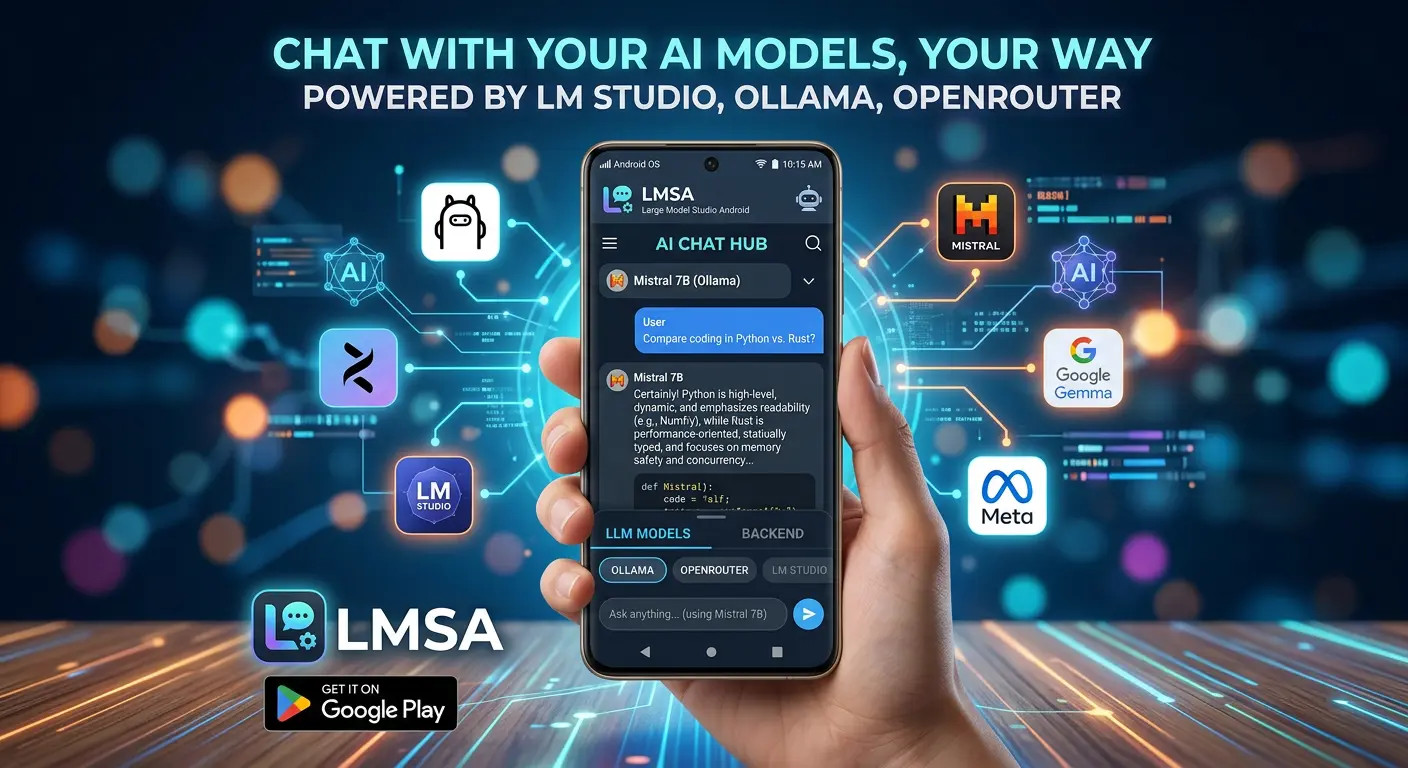
The answer is a free Android app called LMSA (Local Model Smart Assistant), available at lmsa.app. LMSA acts as a mobile front-end for LM Studio, letting your Android phone or tablet talk directly to the LLM server running on your computer over your local Wi-Fi network. Your model, your hardware, your data — just accessible from your couch, your kitchen, or anywhere else in your house.
In this guide, we'll walk through exactly how to connect LM Studio to an Android device using LMSA, step by step, along with some troubleshooting tips for the most common connection issues.
Why Use LMSA Instead of a Browser or Cloud App?
Before diving into setup, it's worth understanding why LMSA has become the go-to option for this specific use case.
LM Studio's built-in server is powerful, but it's designed to be accessed via API calls or a local web browser — not a polished mobile interface. LMSA fills that gap. It's built specifically as a companion app for LM Studio (and also supports Ollama and OpenRouter for cloud models), with a clean, mobile-optimized chat interface, dark mode, adjustable temperature and system prompts, chat history, and a "thinking mode" view for reasoning models like DeepSeek-R1.
Just as importantly, LMSA is privacy-focused: it doesn't track your usage, and your chats and configurations stay stored locally on your device rather than being uploaded anywhere. Since it's connecting straight to your own computer, none of your conversations ever leave your local network.
What You'll Need Before You Start
To connect LM Studio to Android with LMSA, make sure you have the following ready:
- A computer running LM Studio, with at least one model already downloaded.
- An Android device running Android 6.0 or higher.
- Both devices connected to the same Wi-Fi network. This is the most important requirement — LMSA talks to LM Studio over your local network, so your phone and PC need to be able to see each other.
- The LMSA app, downloaded from the Google Play Store or directly from lmsa.app.
Step 1: Load a Model and Enable the Server in LM Studio
Start on your computer. Open LM Studio and load the model you want to chat with — this works with standard chat models as well as vision-language models if you want to send images from your phone later.
Next, you need to turn LM Studio into a local server so other devices on your network can talk to it:
- In LM Studio, navigate to the Developer or Local Server tab (the icon usually looks like
<>). - Click Start Server. By default, LM Studio runs its server on port 1234.
- If there's a toggle for "Serve on Local Network" or similar, make sure it's switched on rather than restricted to localhost only.
Step 2: Find Your Computer's Local IP Address
LMSA needs to know where to send its requests, which means you'll need your computer's local IP address (something like 192.168.1.42).
- On Windows: Open Command Prompt and type
ipconfig. Look for "IPv4 Address" under your active network adapter. - On Mac: Go to System Settings > Wi-Fi > Details, or run
ifconfigin Terminal and look for theinetaddress under your active connection.
Write this address down — you'll enter it into LMSA in the next step.
Step 3: Install and Configure LMSA on Android
Now switch over to your Android device:
- Download LMSA from the Google Play Store or from lmsa.app.
- Open the app and head to the Settings menu.
- Enter your computer's IP address along with the port LM Studio is using (typically
1234). - Save the settings.
If everything is configured correctly, LMSA will detect the model currently loaded in LM Studio, and you can start chatting immediately — with your responses streaming in the same way they would in LM Studio's own desktop chat window.
Step 4: Test the Connection
Send a simple test message like "Hello, are you working?" If you get a response, congratulations — your Android device is now fully connected to your local LM Studio server. You can switch models, adjust the system prompt, tweak temperature, and browse chat history all from your phone.
Troubleshooting Common Connection Issues
Even with a straightforward setup, a few things commonly go wrong. Here's how to fix them:
LMSA can't connect at all
- Double-check both devices are on the same Wi-Fi network — not one on Wi-Fi and one on mobile data, and not on separate guest/main network segments (many routers isolate guest networks by design).
- Confirm the IP address hasn't changed. Home routers often reassign local IPs, so if it's been a while since you last checked, re-verify it with
ipconfig/ifconfig. - Make sure LM Studio's server is actually running — it's easy to forget to hit "Start Server" after loading a new model.
Connection works, but requests fail or hang
- Check your computer's firewall isn't blocking incoming connections on port 1234.
Slow responses
- Remember that generation speed depends on your computer's hardware, not your phone. A large model on a modest GPU or CPU will feel slow regardless of which device you're chatting from.
Bonus: Connecting Away From Home With Tailscale
By default, LMSA and LM Studio only work when both devices share a local network — great for using your phone around the house, but not if you want access while out and about. If you want to reach your home server remotely, you can pair LM Studio with a mesh VPN tool like Tailscale. This creates a private, encrypted network between your devices that behaves as if they're on the same Wi-Fi, no matter where you actually are, without exposing your server to the open internet. Once your PC is broadcasting on the Tailscale network, you simply enter that private IP address into LMSA instead of your regular local one.
Ready to connect?
Setting up LM Studio to work with an Android device used to mean fiddling with raw API endpoints or browser-based workarounds. With LMSA, the process is just: start the server, enter the IP address, and start chatting. It takes about five minutes, doesn't cost anything for the core features, and keeps every conversation running entirely on hardware you own.
If you're already running local models on your desktop, installing LMSA is a natural next step to free your AI setup from your desk — turning your computer into a private, always-available AI server you can reach from anywhere in your home.