
If you've ever gotten a surprise bill from an API provider, or paused mid-project wondering where your prompts actually end up, you're not alone. A growing number of developers are quietly building their own private "OpenAI" — a local server that speaks the exact same language as the OpenAI API, but runs entirely on hardware they control.
The good news: you don't need to be a machine learning engineer to do this. You need a laptop or desktop with a decent GPU (or even just a modern CPU), a free tool to host the model, and a client to talk to it. This guide walks through exactly how to set that up, why it works, and how to actually use your self-hosted server day to day — including from your phone.
Why Developers Are Building Self-Hosted OpenAI Alternatives
Before getting into the how, it's worth being clear on the why, because it shapes which setup makes sense for you.
Cost. Running inference on your own hardware has no per-token pricing. Once the model is downloaded, every request is free.
Privacy. Prompts and completions never leave your machine. For anyone working with client data, internal documents, or anything under an NDA, this alone is often the deciding factor.
Reliability and control. No rate limits, no surprise deprecations, no waiting on someone else's uptime. You choose the model, the context length, and when (or if) you update it.
Offline capability. A properly configured local server keeps working on a plane, in a basement server room, or anywhere Wi-Fi doesn't reach an outside network.
The key to making any of this practical is compatibility. If your local server doesn't speak the OpenAI API format, you have to rewrite every integration, every SDK call, and every tool that expects /v1/chat/completions. That's why OpenAI-compatible endpoints have become the de facto standard for local LLM tooling — they let you swap a cloud model for a local one by changing a single base URL.
Step 1: Choose Your Local Server Engine
Two tools dominate the self-hosted OpenAI space right now, and each is a legitimate choice depending on your comfort level.
LM Studio (GUI-first)
LM Studio is a free desktop app for Windows, macOS, and Linux that wraps model downloading, loading, and serving into a simple interface. To turn it into a compatible endpoint:
- Install LM Studio and download a model in GGUF format (Llama, Qwen, Mistral, Gemma, and others are all supported).
- Open the Developer/Server tab.
- Load your model, then click Start Server.
- By default, this exposes a REST API at
http://localhost:1234/v1, mirroring OpenAI's chat completions, completions, embeddings, and models endpoints.
That's it — no code required. Any client that accepts a custom base_url (the official OpenAI Python SDK, Node.js SDK, LangChain, curl, or a mobile app) can now talk to your machine as if it were talking to OpenAI itself.
Ollama (CLI-first)
Ollama is a lighter-weight, command-line-driven alternative that's popular with developers who prefer scripting over GUIs.
- Install Ollama and pull a model:
ollama pull llama3.2. - Ollama runs a local server by default on port
11434. - To make it reachable from other devices on your network (like a phone), set the
OLLAMA_HOSTenvironment variable to0.0.0.0and restart the service.
Ollama also exposes OpenAI-compatible routes, so the same client code that works against LM Studio or the real OpenAI API generally works here too, with only the port number changing.
Both tools solve the same core problem — they wrap a raw model file in a web server that understands OpenAI's request and response shapes. Pick LM Studio if you want a visual model browser and one-click serving; pick Ollama if you're comfortable in a terminal and want something scriptable.
Step 2: Confirm the Endpoint Actually Works
Before wiring anything else up, test the server directly. A quick curl request confirms everything is functioning:
curl http://localhost:1234/v1/chat/completions \
  -H "Content-Type: application/json" \
  -d '{
    "model": "your-loaded-model",
    "messages": [{"role": "user", "content": "Say hello in one sentence."}]
  }'
If you get back a JSON response shaped like a standard OpenAI chat completion, your compatible endpoint is live. From here, any tool built against the OpenAI API — including your own scripts — just needs two changes: point base_url at your local address, and use any placeholder string as the API key, since local servers typically don't enforce authentication by default.
Step 3: Make the Endpoint Reachable Beyond Localhost
A server running on localhost is only useful on the same machine. To actually use your self-hosted OpenAI alternative from a phone, tablet, or another computer, you have two realistic options:
- Same Wi-Fi network: Enable "Serve on local network" (LM Studio) or bind Ollama to
0.0.0.0, then use your computer's local IP address instead oflocalhostfrom any other device on the same network. - Remote access via Tailscale: For accessing your server outside the house — say, from a coffee shop — a private mesh VPN like Tailscale lets your devices reach each other securely without exposing your server to the open internet. This avoids the security headaches of port-forwarding while still letting you reach your endpoint from anywhere.
This step is where most self-hosted setups quietly fail: people get the server running, but never solve the "how do I actually use this away from my desk" problem. That's the gap a dedicated client app is built to close.
Step 4: Connect to Your Self-Hosted Server From Your Phone
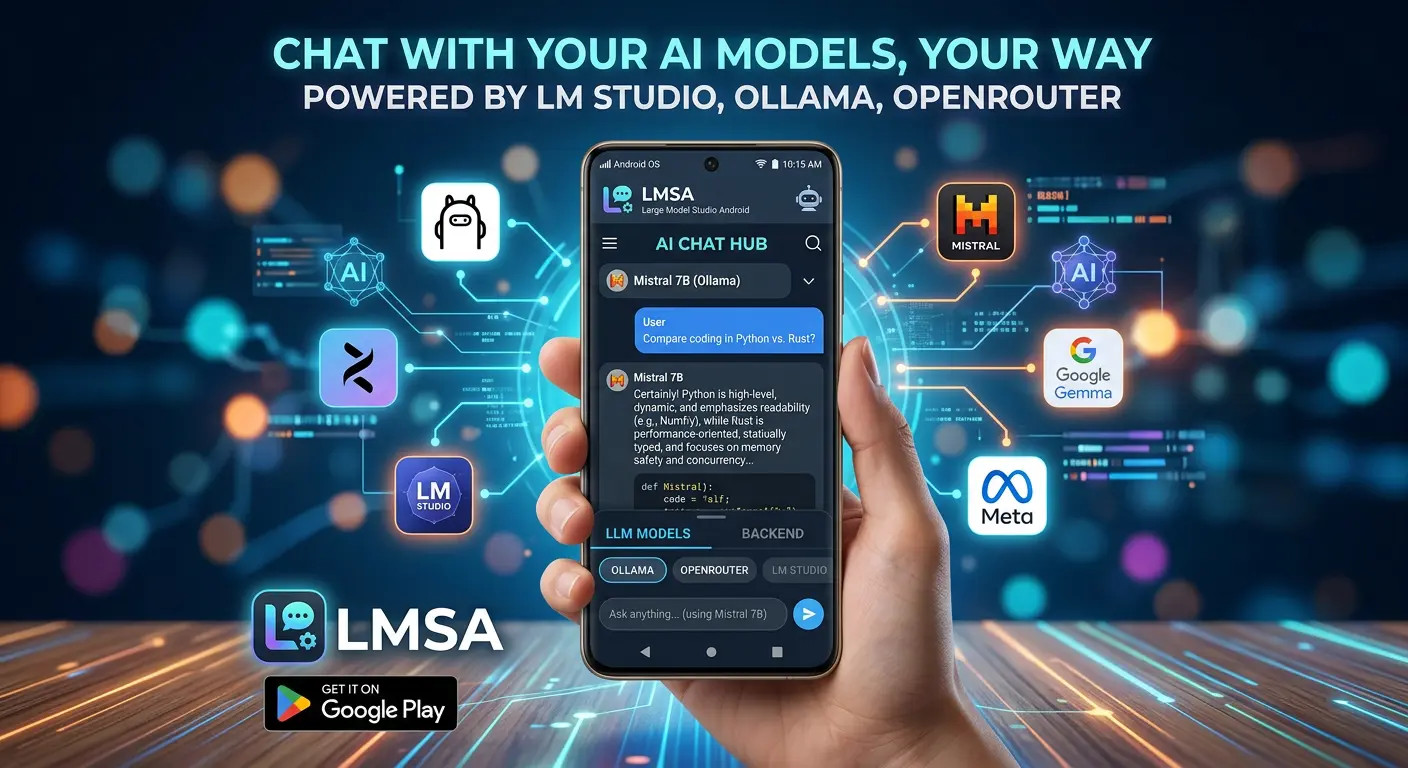
This is where LMSA fits in. LMSA is an Android client built specifically around the idea that your local server — not a company's cloud — should be the thing your phone talks to. Instead of only supporting one provider, LMSA is designed to connect to whatever OpenAI-compatible endpoint you're already running.
Here's what that setup looks like in practice:
Connecting to LM Studio:
- Start your LM Studio server and enable "Serve on local network."
- Make sure your phone and computer are on the same Wi-Fi.
- Copy the server URL LM Studio displays.
- Paste it into LMSA's connection settings, and load your model — from within LMSA, not LM Studio directly, to avoid stacking multiple models in memory.
Connecting to Ollama:
- Set
OLLAMA_HOSTto0.0.0.0so the server accepts external connections. - Enter your computer's local IP address and port
11434into LMSA.
Custom endpoints: Beyond LM Studio and Ollama, LMSA's premium tier supports pointing at any OpenAI-compatible endpoint you've deployed — whether that's a self-hosted server on a home lab machine, a cloud VM running your own inference stack, or a service like OpenRouter for cloud models when you want the flexibility of both local and hosted options in one app.
Since everything is stored on-device — chat history, API keys, and configuration — there's no external database logging your conversations. The philosophy lines up with why most people go down this path in the first place: your prompts, your model, your data, staying under your control end to end.
Common Pitfalls When Deploying a Compatible Endpoint
A few things trip up almost everyone the first time:
- Forgetting the
/v1prefix. Compatible endpoints mirror OpenAI's path structure exactly, so a base URL missing/v1will fail even though the server is running fine. - Loading models in two places at once. If you load a model directly in LM Studio and then again through a client, you can end up with duplicate models competing for RAM. Always load through whichever interface you're actually chatting from.
- Assuming local traffic is encrypted. Connections over local Wi-Fi to LM Studio or Ollama are typically unencrypted by default. That's usually fine on a trusted home network, but worth knowing if you're on shared or public Wi-Fi — this is another reason a private VPN layer like Tailscale is worth setting up for anything beyond your own house.
- Picking a model too large for your hardware. A compatible endpoint is only as fast as the model behind it. Start with a smaller quantized model to confirm the pipeline works before scaling up to something your GPU or unified memory can barely hold.
Is a Self-Hosted OpenAI Alternative Right for You?
If you're prototyping something that touches sensitive data, want to eliminate recurring API costs for high-volume testing, or simply want a chat assistant that works with no internet connection, deploying your own OpenAI-compatible server is very achievable with today's tools. The heavy lifting — model quantization, efficient inference, API compatibility — has already been solved by projects like LM Studio and Ollama. What's left is mostly plumbing: getting the server reachable, and getting a client that respects the setup you've built.
That's the gap tools like LMSA are built to close on the mobile side — treating your own server as the default, with support for LM Studio, Ollama, and custom OpenAI-compatible endpoints, so the private LLM stack you deployed on your desktop doesn't stop being useful the moment you leave your desk.